Showing posts with label SQLDeveloper. Show all posts

1.7.07

APEX 3.0.1 on XE

On 29 Februari 2008 Oracle released Application Express 3.1 . With this release you can upgrade the Application Express within Oracle XE to 3.1. For more information on this topic see Oracle Database XE and Application Express 3.1 and APEX 3.1 on XE .

Oracle released Application Express 3.0.1 recently. With this release you can upgrade APEX within Oracle XE from 2.1 to 3.0.1 (see Oracle Database XE and Application Express 3.0.1). But how to upgrade when you already installed APEX 3.0 on XE?

There is a patch available on Metalink to upgrade from APEX 3.0 to 3.0.1. According to the Patch Set Notes Oracle9i release 2 and higher support this patch if you have APEX 3.0.0.00.20 already installed (the Patch Set Notes also includes a list of fixed bugs). In order to download the patch from Metalink, you will need a support contract (which is not included with XE).

Another option is to remove APEX 3.0 completely. After the removal, XE has APEX 2.1. (still) installed and the next step is of course to install APEX 3.0.1. The big advantage of this option is you following the main route of upgrading XE/APEX as proposed by Oracle. However there are some things to keep in mind.

  • As always start with making a backup of your database.

  • Export all applications you would like to see again in APEX 3.0.1. If you remove APEX 3.0 completely, you also remove all applications stored in the FLOWS_030000(APEX 3.0) schema! Note that applications stored in the FLOWS_020100 schema will be migrated to FLOWS_030000 (APEX 3.0.1).

  • Make a backup of changed or added cascading style sheets (CSS), images and java scripts separately.

  • Run the apex_3.0.1\apxremov.sql script (the script is the same for both versions).

  • Run the apex_3.0.1\apxins.sql script. Check the installation log for errors.

  • Copy the apex_3.0.1\images directory to the /i/directory. Also copy the previous backed up CSS, images and java scripts to the /i/ directory.

  • Import all applications exported in the first step. Note that existing applications in APEX 2.1 are migrated to APEX 3.0.1 as part of the upgrade process.

  • Time to make a backup again.

Have a look at the APEX reports in SQL Developer, no errors any more.

17.6.07

Remote debugging Code Tester

Quest Code Tester for Oracle (Code Tester) helps you with defining test cases, generating test harnesses and presenting the test results in a structured way. Code Tester does not provide any features to debug your code. If you run into a red light situation when a test case fails, you have discover where the error is located. This means checking inputs and outcomes in order to exclude incorrect setup and incorrect initialization code. And of course checking your code, recompiling your (test) code and login again.

If this does not result into a green light, it is time to debug your code with a development IDE. As a result you have to transfer your test code into your development IDE. Wouldn't it be nice if you could enter debug mode seamlessly: when executing your test case the execution stops at a breakpoint and you can debug your code. The answer is: yes, you can. With SQL Developer you can remote debug your code within a test run.

The linking pin between Code Tester and SQL Developer is the package sys.dbms_debug_jdwp where jdwp stands for Java Debug Wire Protocol. This protocols needs a debugger process i.e. SQL Developer and a debuggee process i.e. Code Tester. The debugger listens for requests from the debuggee i.e. PL/SQL package procedure calls to connect_tcp and disconnect.

Setting up the debuggee
In Code Tester you have to modify the initialization section of your test case. Add the following code
dbms_debug_jdwp.connect_tcp(host => '127.0.0.1', port => 4000);
The first parameter is your IP address of the client where the Code Tester IDE runs (as seen from the database server you're connected to). Because I'm running Code Tester and Oracle XE on the same machine, I use the local host address 127.0.0.1. The second parameter is the default port. An alternative for the hard coded IP address is SYS_CONTEXT ('USERENV', 'IP_ADDRESS').

After the test case is executed, switch off remote debugging. Add the following code to the cleanup section:
dbms_debug_jdwp.disconnect;

Setting up the debugger
In SQL Developer login with the same user as Code Tester and right click on your connection, a context menu appears and select the 'Remote Debug' option. A small window with the title 'Debugger - Listen for the JPDA' (Java Platform Debugger Architecture) appears, enter the address or host name where SQL Developer should listen to connect. Use the same IP address as in dbms_debug_jdwp.connect_tcp. Also check if the port is the same.


Before switching to Code Tester again set a breakpoint in your code (and compile your code for debug) otherwise the debugger will not stop at your breakpoint. At last but not at least make sure the user has the debug connect session privilege and the debug any procedure when debugging other users objects.

Debugger meets debuggee
It is time to run your test with Code Tester. SQL Developer will stop on your breakpoint. Note: while debugging your code Code Tester will not respond. After stepping through your code press the resume button in SQL Developer to return to Code Tester. As an example I modified the code of the normal usage test case of the function qctod#betwnstr (see for an explanation and the source code How Quest Code Tester for Oracle can help you get rid of bugs in your PL/SQL procedures). In the picture below SQL Developer hits the breakpoint at line 13. In the data tab you can see all variables and their values.

This example shows how to use remote debugging with Code Tester. Instead of using SQL Developer as debugger you can also use Toad for Oracle or Jdeveloper. And also every front end can be used as debuggee for remote debugging as long the calls to dbms_debug_jdwp can be implemented. Let's start debugging!

Links
I found the following links usefully while writing this blog entry:

13.5.07

APEX reports and SQL Developer

Both Kris Rice and Dimitri Gieles blogged about new APEX reports in SQL Developer 1.1.3 . Minor detail: those reports are build for Application Express version 3.0.1 , which is not released yet.

I installed the new version of SQL Developer, and tried to run the APEX reports (location in the reports tree: All reports, Data dictionary Reports, Application Express). Surprisingly, I did not get the message Application Express 3.0.1 or higher required. In a few cases I received an error: ORA-00904 invalid identifier.

To find the SQL behind the reports a simple copy and paste of the report did not work i.e select the Application report, right click and select copy. Select the User Defined Reports, right click and paste from, nothing happened. Even export of the report(s) did not work.

After some searching I found the report SQL hidden in a file: oracle.sqldeveloper.report.jar (location sqldeveloper\extentions directory). This .jar file includes an apex30.xml, this file contains all the APEX reports in XML format (you can unzip the XML file with an unzip utility). The next step is to import the apex30.xml and then you will see all the reports in the User Defined Reports branche as well.

Changing the SQL is left as an exercise to the reader... ;-)

25.12.06

Changing preferences by executing a report in SQL Developer

I've upgraded from SQL Developer 1 (version 1.0.0.11.84) to 1.1 (version 1.1.0.23.64). One of mine favorite features in SQL Developer is the drill down capability within Reports. Just add three columns to your query and SQL Developer knows which database object properties to display if you double click a row in the report output. This feature is explained in detail in the article Making the Most of Oracle SQL Developer Reports by Lewis Cunningham. However Oracle changed the behavior a little...

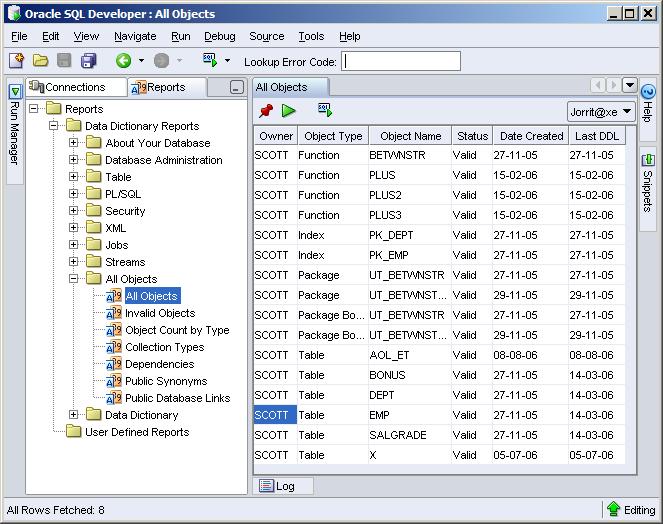
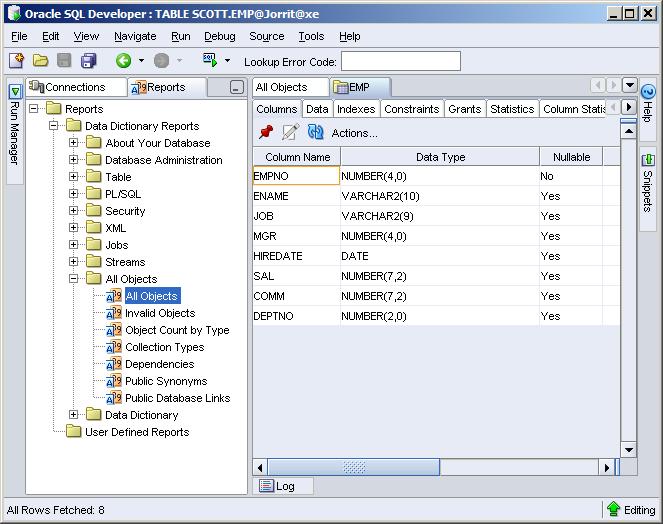
Let's illustrate this behavior with an example. Execute the report All Objects for owner SCOTT and leave tables empty. The left picture below shows the result and after a double clicking on the EMP row.

SQL Developer 1.0 all objects reportDouble click the EMP row and SQL Developer shows the properties of the EMP table.

SQL Developer 1.0 EMP properties
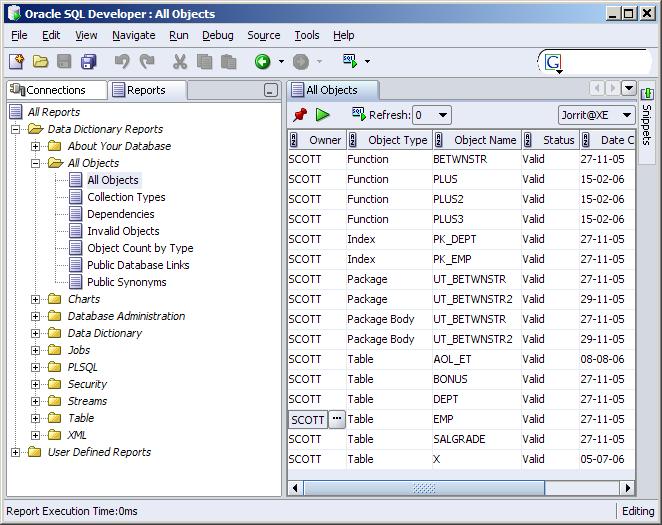
In SQL Developer 1.1 this behavior has changed. If you double click a row a button with the text ... appears. Another new feature is changing the order by of a column by double clicking on the column header.

SQL Developer 1.1 all objects report
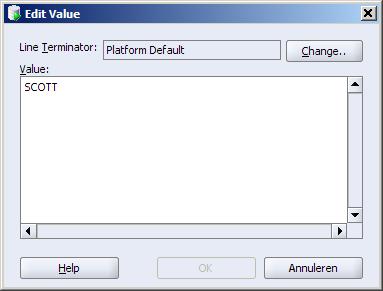
Click the button and in a new window you can change the Line terminator value.

SQL Developer 1.1 Edit line terminator value
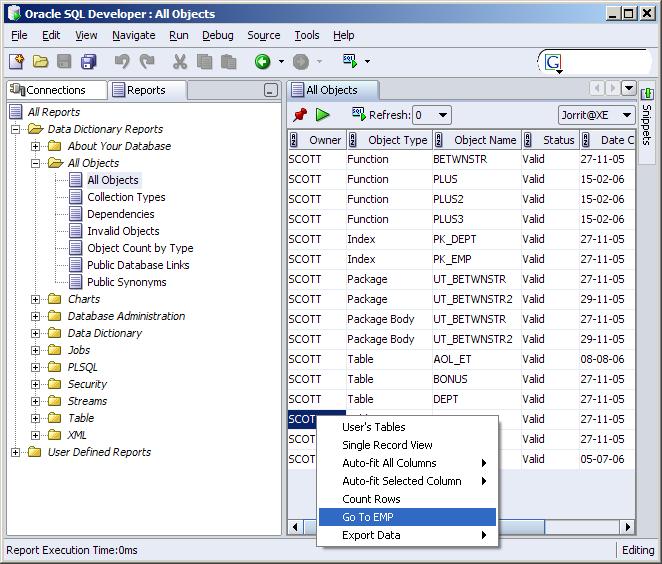
But I don't want to change line terminator value, I want to see the properties of the EMP table. After some trial and error I found the solution: right click on the EMP row and a list with options is shown. One of those options is Go To EMP.

SQL Developer 1.1 all objects report context menu
The right click feature was already available in version 1, but it only showed the Export Data item in the list.

However, I do not understand why you can set the line terminator value at column level. If you try to change the line terminator value by clicking the change button SQL Developer shows the Preferences window where you can set the line terminator value at once for all reports (forget the shortcut Alt-Tools Preferences :-)).